
Picture this: you've spent hours perfecting a design, sent it to print, and then disaster strikes. Up to 30% of print files fail validation, causing 48-hour delays and costly reprints. Understanding print readiness eliminates these headaches. This guide walks you through the essentials of creating print-ready files, from technical specifications to automated workflows, so your designs sail through production every time.
Table of Contents
- Understanding print readiness and why it matters
- The role of preflighting and prepress workflows
- Print-ready PDF standards and their impact
- Applying print readiness: tips for designers and print shops
- Discover LayerPrep tools to perfect your print files
- Frequently asked questions
Key takeaways
| Point | Details |
|---|---|
| Print readiness prevents costly errors | Files meeting technical specs avoid production delays, wasted materials, and rushed corrections |
| Preflighting dramatically reduces failures | Automated checks catch resolution, color mode, bleed, and font issues before printing |
| PDF/X standards ensure consistency | Professional file formats eliminate interpretation differences between design software and printers |
| Human oversight catches practical issues | Designers and prepress staff verify safe areas, fold lines, and layout concerns automation misses |
| Proof approval transfers responsibility | Client sign-off confirms file accuracy and shifts liability from printer to designer |
Understanding print readiness and why it matters
Print readiness means your digital file meets every technical specification required for successful printing. Think of it as a pre-flight checklist for aircraft. Just as pilots verify systems before takeoff, print files need validation before hitting the press.
When files aren't print-ready, chaos ensues. Common failures include incorrect resolution (images below 300 DPI), wrong color modes (RGB instead of CMYK), missing bleed areas, and unembedded fonts. These issues trigger production stops, emergency client calls, and rushed fixes that compromise quality.
The consequences extend beyond frustration. Production delays ripple through your schedule, pushing back other jobs. Cost overruns eat profit margins when you reprint entire runs. Wasted materials harm both your budget and environmental footprint. Streamlining your digital artwork print process starts with catching these issues early through preflighting.
Every print-ready file must satisfy core requirements:
- Resolution at 300 DPI minimum for crisp output
- CMYK color mode for accurate color reproduction
- Bleed extending 0.125 inches beyond trim marks
- All fonts embedded or converted to outlines
- Images in high-quality formats (TIFF or high-res PDF)
- Correct document dimensions matching final trim size
Pro Tip: Create a master checklist template for your team. Consistency eliminates human error and ensures every file leaving your shop meets professional standards before you invest press time.
The role of preflighting and prepress workflows
Preflighting software acts as your quality control gatekeeper. These tools automatically scan files for technical problems, flagging issues before they become expensive mistakes. Preflighting software can identify and correct errors, reducing print errors by up to 90%.
Automated checks examine critical specifications:
- Bleed areas meet printer requirements
- Color mode matches output device (CMYK for offset, RGB for digital)
- Resolution exceeds 300 DPI threshold
- Fonts are properly embedded or outlined
- Transparency is flattened correctly
- Document size matches ordered dimensions
Yet automation isn't foolproof. Human expertise catches what software misses. A prepress specialist reviews layout logic, verifies fold lines align properly, confirms text stays within safe areas, and spots design elements that might cause practical production issues. This combination of technology and experience creates bulletproof workflows.
A typical prepress workflow follows these steps:
- Initial file receipt and format verification
- Automated preflight scan identifying technical issues
- Human review of layout, bleeds, and practical concerns
- Client communication about any required corrections
- Proof generation (soft or hard) for final approval
- RIP processing and plate or digital output preparation
Prepress involves file review, proofing, printer's marks, imposition/pagination, and RIP output. Each step builds confidence that what you see on screen matches what emerges from the press.
Pro Tip: Invest in preflight software that learns your shop's specific standards. Configure custom profiles matching your equipment capabilities and common job parameters to streamline your digital artwork print process dramatically.
Print-ready PDF standards and their impact
PDF files seem universal, but not all PDFs guarantee print success. PDF/X standards are subsets designed for professional printing, removing features causing interpretation differences. These specialized formats eliminate variables that create unpredictable results.
Standard PDFs include interactive features, embedded multimedia, and device-dependent color specifications that confuse printing equipment. PDF/X standards strip these elements, creating files optimized purely for reliable reproduction. Think of them as PDFs with training wheels removed and racing slicks installed.
PDF/X-1a enforces CMYK-only color and flattening transparency, making it the most widely requested format for offset printing. PDF/X-3 offers more flexibility for specialized workflows. Here's how they compare:
| Feature | PDF/X-1a | PDF/X-3 |
|---|---|---|
| Color mode | CMYK only, no RGB or spot colors beyond separations | Supports RGB, CMYK, and device-independent color |
| Transparency handling | Must be flattened completely | Preserves live transparency in compatible workflows |
| Best use case | Traditional offset printing with proven reliability | Digital printing and color-managed workflows |
| Compatibility | Universal printer acceptance | Requires color management capability |
Choosing the correct PDF/X format impacts print predictability significantly. PDF/X-1a eliminates color surprises by forcing CMYK conversion during file creation, when you control the process. PDF/X-3 offers flexibility but requires sophisticated color management systems that not all print shops possess.
Always consult your printer before finalizing files. They'll specify which PDF/X standard their equipment handles best. This simple conversation prevents format mismatches that trigger reprints. Understanding master print design terms helps you communicate confidently with print providers about technical requirements.
Applying print readiness: tips for designers and print shops
Theory becomes valuable only through application. Transform print readiness knowledge into daily practice with systematic file preparation and clear communication protocols.
Your final file preparation checklist should verify:
- All fonts embedded or converted to outlines
- Transparency flattened to prevent reinterpretation
- Bleed extending 0.125 inches minimum beyond trim
- Color mode correctly set (CMYK for most printing)
- Images meeting 300 DPI resolution at final size
- Document dimensions matching ordered specifications exactly
- PDF/X format matching printer requirements
Proofing deserves special attention. Soft proofs (on-screen PDFs) catch most issues quickly and cost-effectively. Hard proofs (physical prints) reveal color accuracy and paper interaction that screens cannot simulate. Both serve important roles. Proof approval transfers responsibility from printer to client, making this step legally and financially significant.
Communication prevents most print disasters. Confirm printer specifications before designing, not after. Ask about preferred PDF/X formats, bleed requirements, and color profiles. Request sample prints on your chosen paper stock to see how colors render. These conversations take minutes but prevent hours of corrections.
Common pitfalls sabotage even experienced designers:
- Assuming all printers use identical specifications
- Skipping proof approval to save time or money
- Converting RGB to CMYK at the last minute without checking results
- Ignoring printer warnings about potential issues
- Using low-resolution placeholder images in final files
Pro Tip: When you approve a proof, you accept responsibility for the printed result. Review proofs carefully in proper lighting. Check colors, text, alignment, and image quality. This signature protects both you and your print provider.
Understanding what print layers are helps you organize complex files and communicate clearly with print shops about color separations and production requirements.
Discover LayerPrep tools to perfect your print files
Achieving print readiness consistently requires smart tools that match modern workflow demands. LayerPrep's AI-powered design color separator automates the tedious process of preparing print-ready files, handling color separation, Pantone matching, and file validation in seconds rather than hours.
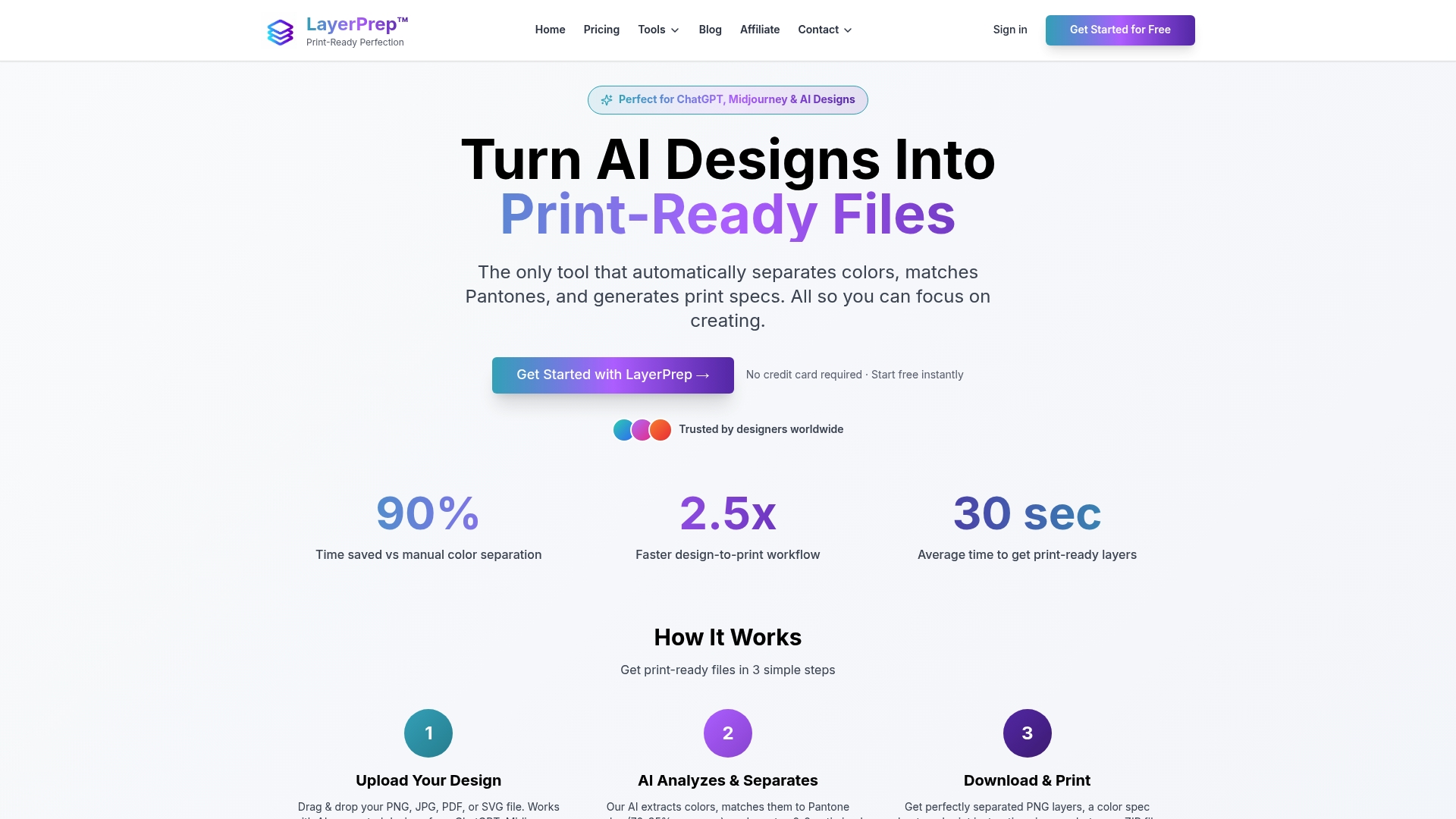
The platform excels at extracting print layers from digital designs, whether they're AI-generated or traditionally created artwork. It validates DPI resolution, checks bleed specifications, and produces properly formatted output files. For screen printing specifically, LayerPrep's screen print tool streamlines color separation with accuracy rates reaching 95% for Pantone matching.
By catching technical issues before they reach production, LayerPrep reduces the errors that cause costly delays and reprints. The tool integrates naturally into existing workflows, supporting multiple file formats and handling complex gradients that challenge manual separation. Explore how LayerPrep transforms print preparation from a bottleneck into a competitive advantage.
Frequently asked questions
What exactly makes a file print-ready?
A print-ready file meets all technical specifications your printer requires: correct resolution (300 DPI minimum), appropriate color mode (typically CMYK), proper bleed allowance, embedded fonts, and correct dimensions. It arrives in a format your printer can process directly without modifications, usually as a PDF/X file that eliminates interpretation variables.
How does preflighting differ from simple file review?
Preflighting uses specialized software to automatically scan files against technical checklists, identifying resolution problems, color mode issues, missing fonts, and specification mismatches. Simple review relies on human inspection, which catches layout concerns but often misses technical problems that cause print failures. Combining both approaches provides comprehensive quality control.
Should I use PDF/X-1a or PDF/X-3 for my projects?
PDF/X-1a suits most traditional offset printing because it enforces CMYK-only color and flattens transparency, eliminating color management variables. PDF/X-3 works better for digital printing and color-managed workflows that handle device-independent color spaces. Always confirm your printer's preference before choosing, as their equipment capabilities determine which format performs best.
Why do printers require bleed on print files?
Bleed provides a safety margin for trimming imperfections. Even sophisticated cutting equipment has slight variations (typically 1/16 inch). Without bleed, these variations create white slivers at paper edges. Extending design elements 0.125 inches beyond trim marks ensures your design reaches the edge even if trimming shifts slightly during production.
What happens if I approve a proof with errors?
Proof approval transfers production responsibility from printer to client. If you sign off on a proof containing errors and the printer reproduces it accurately, you typically bear the cost of corrections and reprints. This makes careful proof review essential, as your signature confirms the file meets your expectations and specifications.
Can preflighting catch every possible print problem?
Preflighting catches technical specification issues like resolution, color mode, fonts, and bleed automatically. However, it cannot judge design quality, layout logic, or practical production concerns like text in fold areas. Effective print readiness combines automated preflighting with human expertise to address both technical and practical considerations comprehensively.